Before you send the wedding
How to prepare a wedding photo editing brief: Lightroom reference edits, Smart Previews, your XMP preset and the details that prevent mismatched expectations.
Make your style visible
After photographing a wedding, sending over the RAW files and getting back to everything else is an understandable wish. I understand why photographers want that. But when the files arrive without context, your editor has to fill in decisions that may feel obvious to you.
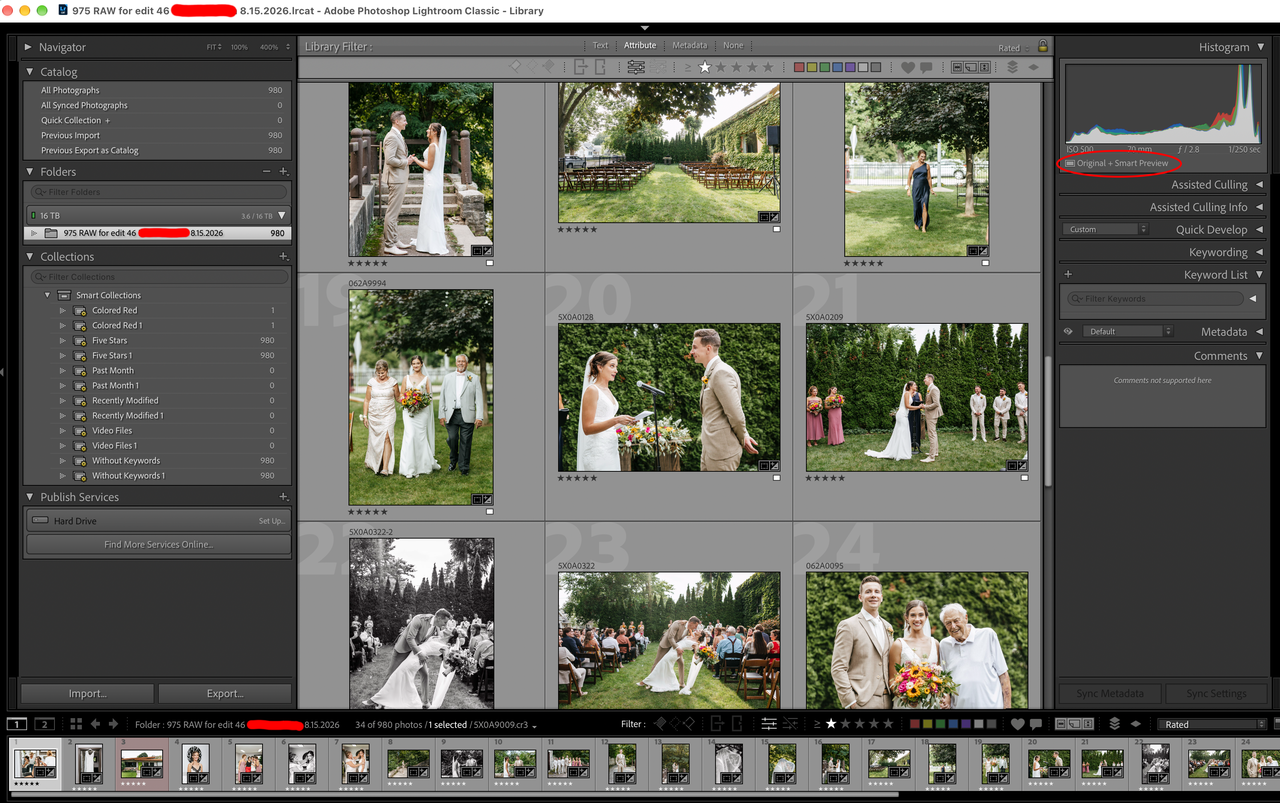
The most useful handoff shows both the result you want and the choices behind it. In my work at SOLONSKI, that means finished reference edits inside a Lightroom Classic catalog with Smart Previews, the XMP preset you use, a link to your portfolio, and clear instructions for this particular wedding.
Every photographer works differently. My aim is to understand your approach and adapt to it. The details you share make that much more precise.
Show different scenes
Your sneak peeks can be especially useful references: they are already finished photographs that you have chosen to give the couple. You can also edit a set of images specifically for your editor. Either way, leave those edited examples in the catalog you send.
Choose examples from different parts of the day: getting ready, the ceremony, outdoor portraits and the reception. A sunny portrait does not tell me everything about how you want an indoor scene or the evening atmosphere to look.
I think of these images as anchor points. They show what the rest of the wedding should relate to, without assuming that every scene needs identical settings.
Go beyond the preset
When I ask for an XMP file here, I mean your preset file. It gives me a starting point. Your finished edits in the catalog show how you actually use it.
I look at much more than the color: masks and local adjustments, cropping, and the details you choose to remove or leave in. A wire in the background might be something you always clean up, or something you intentionally leave alone. The reference edits help me understand those decisions.
A website or Instagram link adds the wider picture of the work you show your clients. Use it alongside the catalog references. The portfolio shows the finished style; the catalog lets me inspect the saved adjustments behind your examples.
Tell me whether horizons should be straightened or whether deliberate tilts are part of your style. Mention EXIT signs, tripods, wires or other distractions you want addressed. Detailed cleanup requests should be agreed as part of the job, so the brief does not leave the scope open to interpretation.
Mark the reference edits
Use the system you already work with: five stars, a Pick flag, or a color label. There is no special SOLONSKI marking method to learn. I can adapt to yours.
The important part is to explain which marker identifies finished reference edits. If you also use stars or flags to select images for delivery, make the distinction clear. The same five-star rating should not leave your editor guessing whether a photo is an editing reference or simply a keeper.
For example: “Green-labeled images are my finished reference edits. Please use them as the style guide for the rest of the wedding.” That is an example of an instruction, not a required color.

Be specific about black & white
In one wedding I worked on, the photographer had asked for black-and-white images but had not specified how many. The delivered selection contained fewer than the photographer expected. We had agreed that black and white was wanted, but not the amount.
That is an easy gap to leave in a brief. “Include black and white” sounds clear until two people interpret it differently. Give an approximate number or a percentage, and mention any scenes or photographs you particularly want in black and white.
Also clarify whether those should be additional versions of color photographs or part of the main delivered selection. The goal is not a universal ratio. It is an agreement about what you expect from this wedding.
Send the catalog together
For this workflow, send the Lightroom Classic catalog together with its Smart Previews, keeping your finished reference edits and their markers in place. Smart Previews let an editor work when the original photographs are not connected to their computer; the catalog carries the editing information.
When exporting a catalog, Lightroom Classic offers Build / Include Smart Previews. Check that the previews cover the photographs you intend to send. An ordinary preview cache is not the same thing as Smart Previews.
Keep the accompanying .lrcat-data file with the catalog when it is present. Adobe notes that this file holds important edit information, including data used by AI edits. Sending only the .lrcat file can leave part of that work behind.
Include the XMP preset and the written brief with the handoff, and make the portfolio link easy to find. Check that your shared file link allows the editor to open and download the materials. Keep your own originals and a backup.
If you prefer to send RAW files, say so when arranging the order. The need for reference edits and clear instructions remains the same. A large folder of files cannot explain the decisions you have not written down.

Before you share the link
Use this final check to make sure the handoff describes the wedding you want back. A few specific notes are more useful than a long brief that leaves the key decisions unstated.
Use this checklist while preparing your files. Checkmarks are not saved or sent.
Keep your own workflow
You do not have to organize your creative process around your editor. Keep the markers and working habits that make sense to you, and explain them in the handoff.
The better I can see how you approach a wedding, the better I can understand what matters in your photographs. A finished reference, a clear marker and a specific instruction make that understanding possible.