Lightroom Classic plug-in · Mac & Windows
Distraction
Remover
One bright EXIT sign can follow a couple down the aisle for twenty frames. Clean up the whole selection in Lightroom.
Choose EXIT signs, tripods, fire alarms or extinguishers. Each correction stays editable on the original in Lightroom’s Remove tool.
Launch offer. Planned standard price $156.
BuyOne-time payment. Includes Mac and Windows downloads.
An EXIT sign
just above the hairline.
Look just above the man’s head as he walks down the church aisle. Switch to After to inspect the hairline and the doorway where the green sign was removed.
Inside Lightroom.
Select your originals
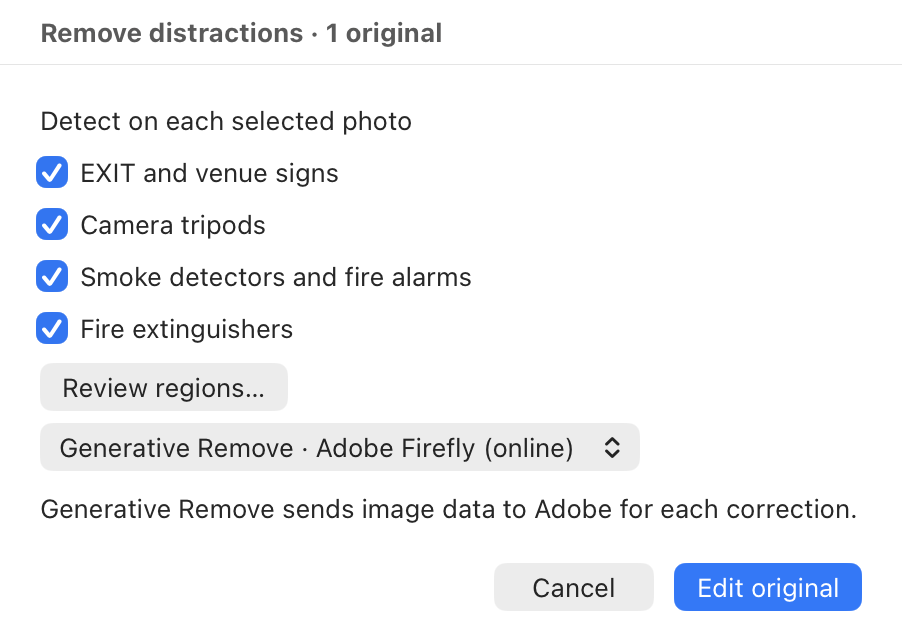
In Library, select the frames from a folder or collection. Open Library → Plug-in Extras → Remove distractions….
Choose what to remove
Tick any combination of venue and EXIT signs, camera tripods, smoke detectors and fire alarms, or fire extinguishers. Leave the other categories unchecked.
Run the edit
Choose Generative Remove for an Adobe Firefly fill or Content-Aware Remove for local processing. Click Edit originals. With one frame selected, the button reads Edit original.
Check the result
Read the batch report, then open Develop → Remove to inspect the pins. Zoom in where a sign meets hair, a veil or a face. Export the edited originals with your usual gallery preset.
Questions before
you start.
Download the quick start Which version of Lightroom do I need?
The studio preview was tested in Lightroom Classic 16.0.1 on Mac. Connect the drive containing your originals before you start. Smart Previews alone are insufficient. The Windows x64 edition bundles both sign detectors. Native Lightroom testing was performed on Mac. Lightroom for mobile and the web are unsupported.
Does this change my RAW files or make copies?
Edits are saved on the originals in the Lightroom catalog. Your RAW file and its filename stay intact. The plug-in skips existing virtual copies. You can adjust or remove a correction in the native Remove tool before export.
Does it send photographs to Adobe?
Detection runs on your computer. Generative Remove uses Adobe Firefly and sends image data to Adobe for each correction. It needs internet access and an Adobe account with access to the feature. Choose Content-Aware Remove for a local fill.
What if it misses something?
Small or partly hidden objects, especially extinguishers, can be missed. Select one original, reopen the plug-in and click Review regions…. Click a dashed box and choose Include region, or drag over a missed object. Choose Apply to original.
Will it remove a sign next to someone’s hair?
A confidently detected sign can be removed even when its edge touches hair. Check that edge at full size. Large or uncertain detections and equipment close to people may be held for review.
How do I install it?
After checkout, open Payments and download the ZIP for your computer. Extract it and follow Install on Mac.txt or Install on Windows.txt. Add the plug-in in Lightroom Classic under File → Plug-in Manager.