Lightroom Classic plug-in · v0.1
Skin Tone Match
Keep the skin tones you love in one portrait consistent across the rest of the scene.
Pick a finished portrait as your reference. The plug-in samples faces, tests a red and orange hue adjustment, and gives you virtual copies to compare with your originals.
Launch offer for the first 100 customers. Checking availability…
BuyOne-time payment. No subscription.
Lifetime License for version 0.1.
From one portrait
to a series.
Choose your reference
Select a finished portrait with one visible face. In Library → Plug-in Extras, choose Save Skin Tone Reference. Or start with the automatic hue target.
Match a selection
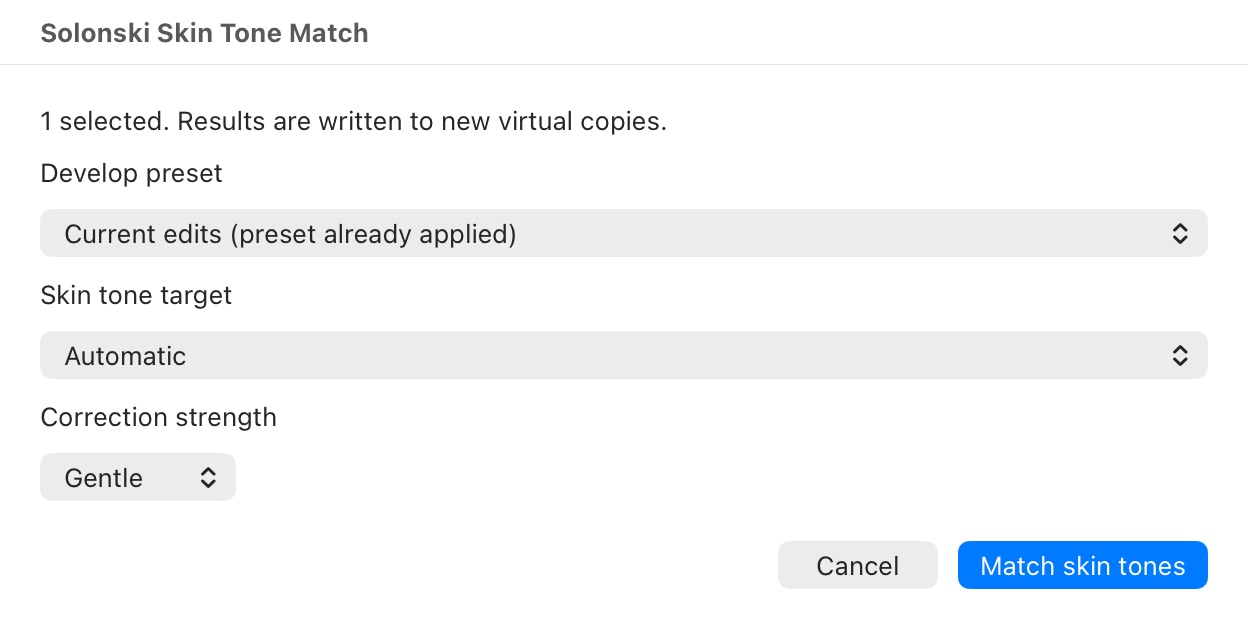
Select portraits taken in similar light. Open Skin Tone Match from the same menu, choose your target and try Gentle. Keep your current edits or select a Develop preset.
Compare the copies
Click Match skin tones. Compare each new virtual copy with its original. Use Select for review to find the frames that need a closer look.
Installation
Lightroom Classic desktop 13 or later.
Tested on macOS with Classic 16.0.1. Windows testing is pending.
Install on macOS
- Double-click the downloaded ZIP in Finder.
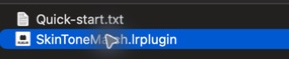
- Move SkinToneMatch.lrplugin to a permanent folder, such as Documents/Lightroom Plug-ins.
- In Lightroom Classic, open File → Plug-in Manager → Add, select the entire .lrplugin package, then click Add Plug-in and Done.
Install on Windows
- In File Explorer, right-click the downloaded ZIP and choose Extract All.
- Move the extracted SkinToneMatch.lrplugin folder to a permanent location, such as Documents\Lightroom Plug-ins.
- Open File → Plug-in Manager → Add in Lightroom Classic. Select the whole .lrplugin folder, confirm your selection and click Done.
Best for portraits in similar light.
Start with one or two clearly visible faces per frame. The plug-in adjusts global Red and Orange Hue, so check nearby flowers, wood and clothing too. Exposure, contrast and white balance stay in your hands.